Add a customer and their car
Two forms, and the reg look-up fills in the car for you: make, model, year, colour, fuel and MOT due date.
Or click through it at your own pace
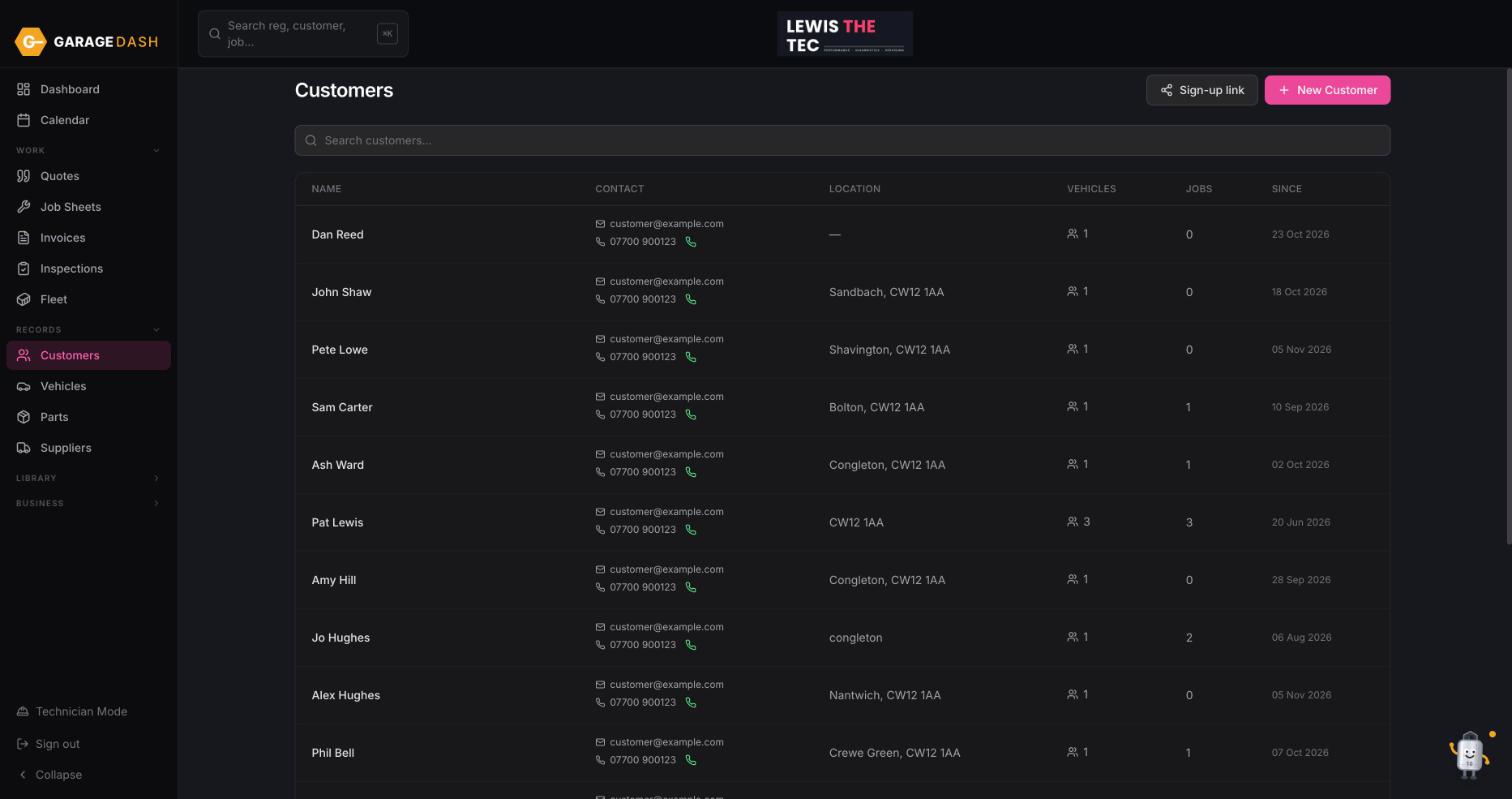
Go to Customers and click New Customer
Click Customers in the left menu, then the pink New Customer button top right.
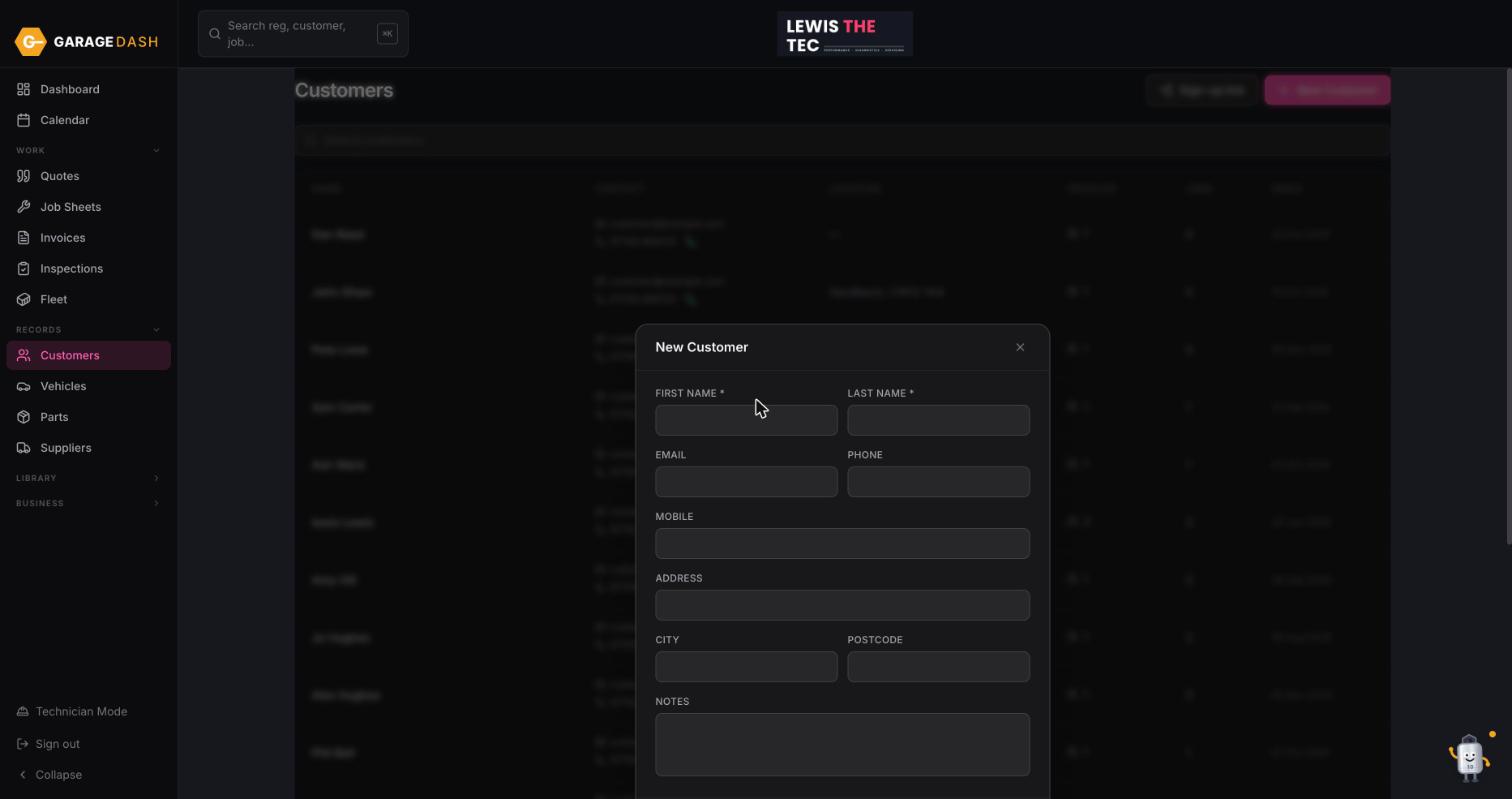
Fill in their details and save
First name and last name are the only required fields. Add a mobile and email if you want reminders and invoices to reach them. Click Save at the bottom of the form.
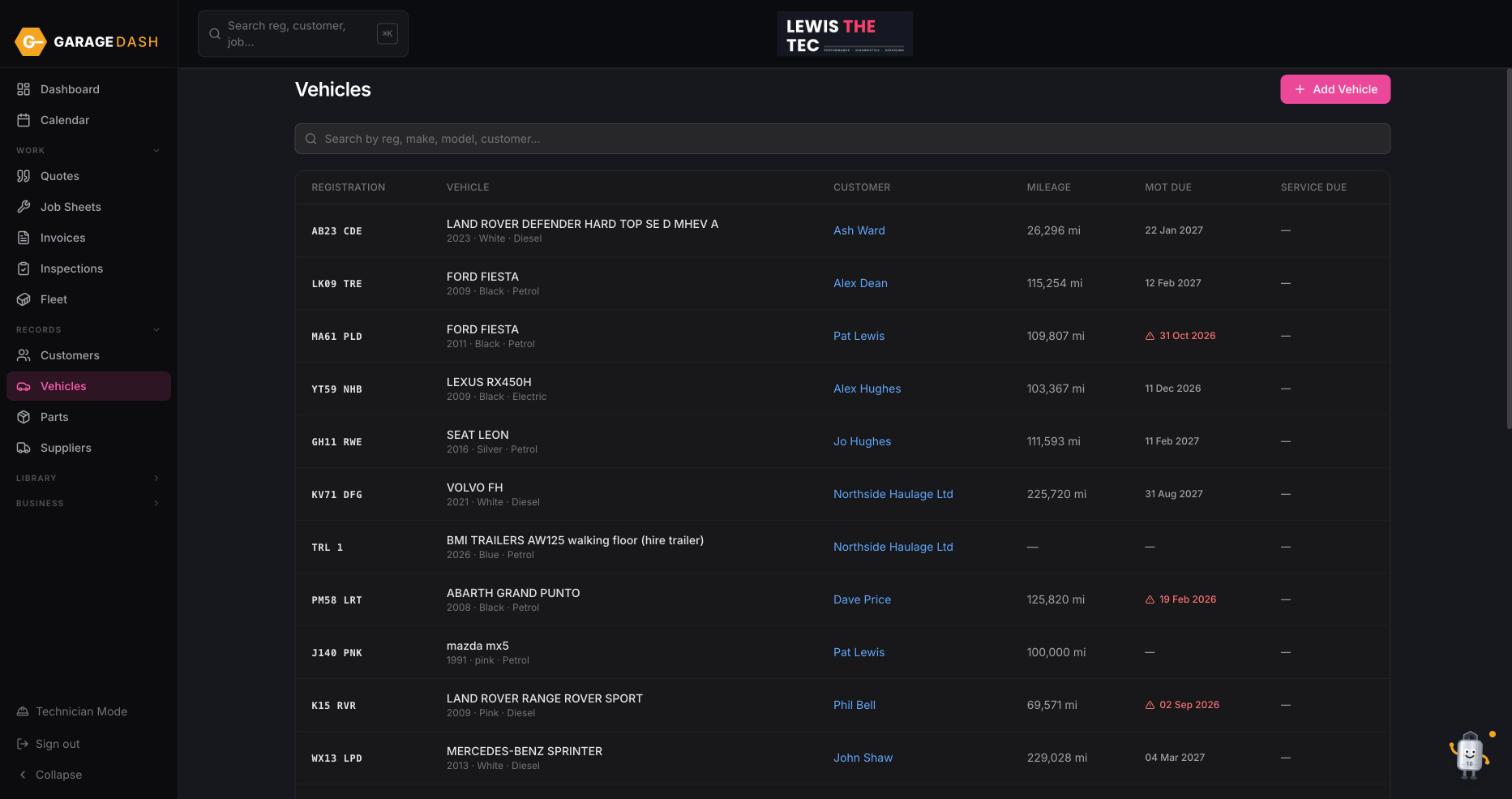
Go to Vehicles and click Add Vehicle
Click Vehicles in the left menu, then Add Vehicle top right. You can also do this from the customer's own page.
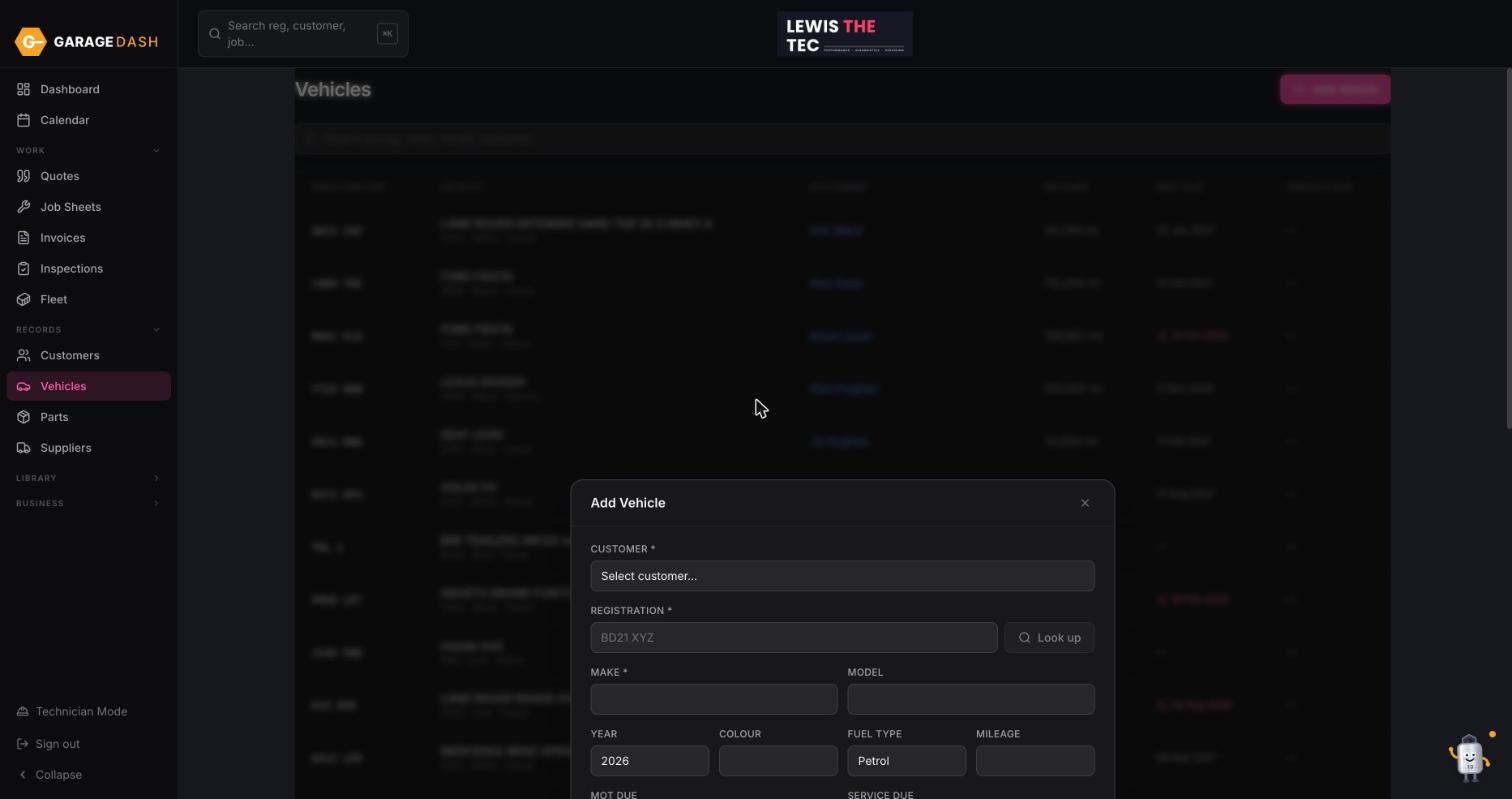
Pick the customer, type the reg, click Look up
Choose the customer from the Customer list, type the registration and click Look up. Make, model, year, colour, fuel and the MOT due date fill themselves in from the DVLA record. Add the mileage if you know it, then click Save Vehicle.
Done. The MOT date now drives the reminders
The car appears in the list with its MOT due date. If you switch on MOT reminders in Settings, this date is what the reminder email is sent from.
All the steps on one page
- Go to Customers and click New Customer. Click Customers in the left menu, then the pink New Customer button top right.
- Fill in their details and save. First name and last name are the only required fields. Add a mobile and email if you want reminders and invoices to reach them. Click Save at the bottom of the form.
- Go to Vehicles and click Add Vehicle. Click Vehicles in the left menu, then Add Vehicle top right. You can also do this from the customer's own page.
- Pick the customer, type the reg, click Look up. Choose the customer from the Customer list, type the registration and click Look up. Make, model, year, colour, fuel and the MOT due date fill themselves in from the DVLA record. Add the mileage if you know it, then click Save Vehicle.
- Done. The MOT date now drives the reminders. The car appears in the list with its MOT due date. If you switch on MOT reminders in Settings, this date is what the reminder email is sent from.