Book a job into the calendar
A booking is a slot in the diary with a customer, a car and a technician. From it you open the job sheet.
Or click through it at your own pace
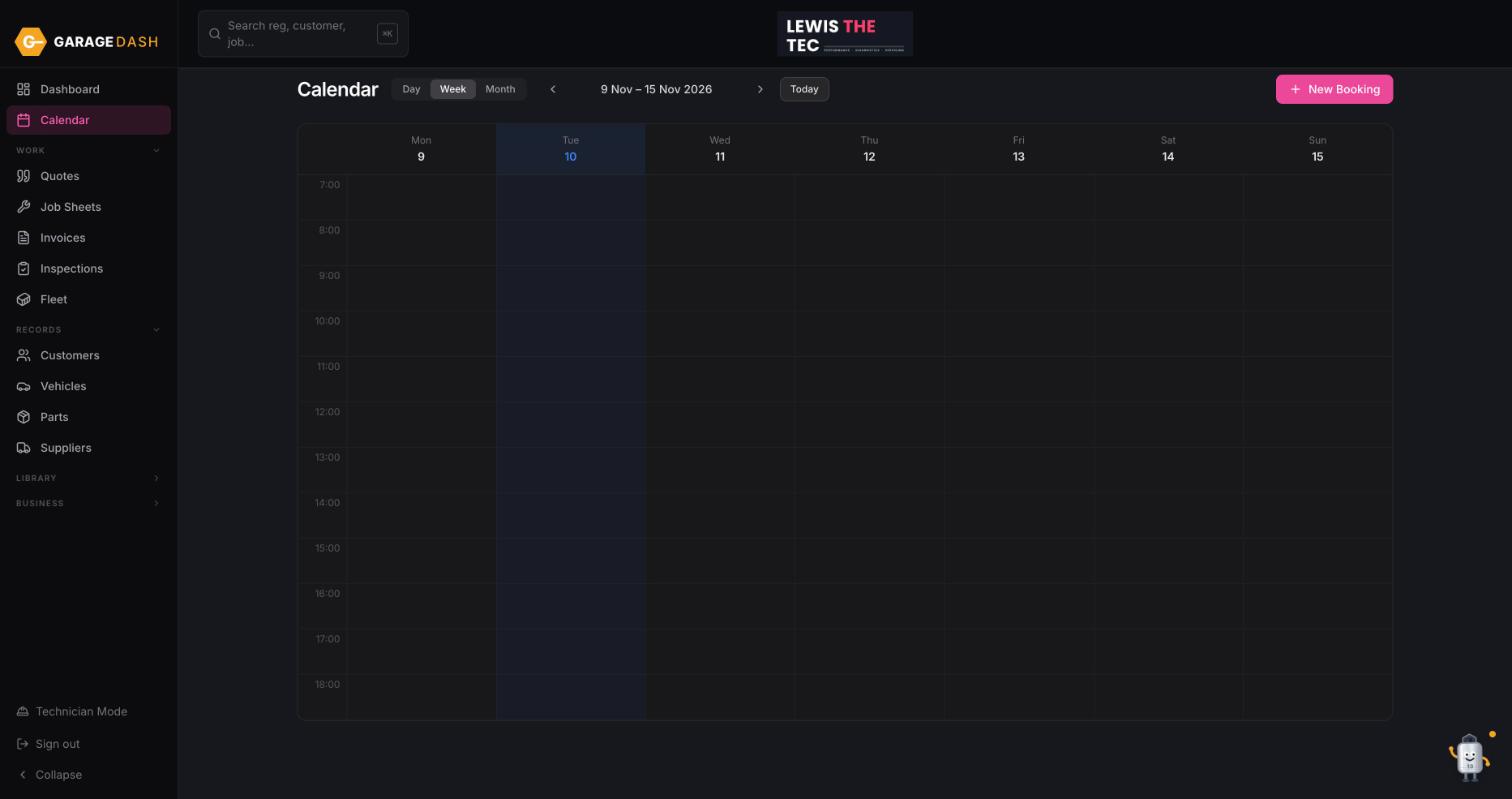
Open the Calendar and click New Booking
Click Calendar in the left menu. Use Day, Week or Month to find the day, then click New Booking top right. Clicking an empty slot in the grid does the same with the time filled in.
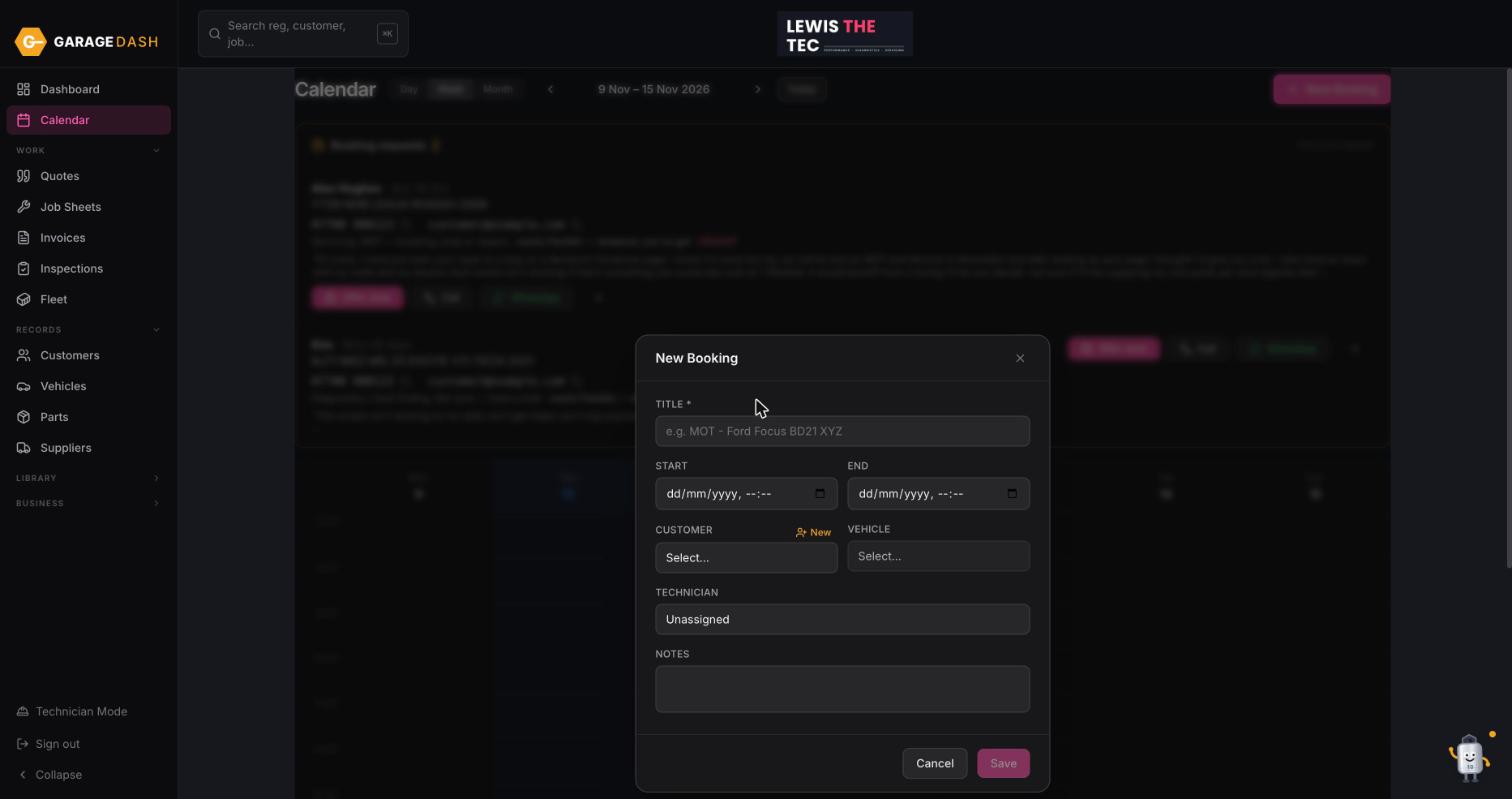
Give it a title, a start and end, a customer and a car
Type a Title such as MOT and service. Set Start and End. Pick the Customer and their Vehicle. If the customer is new, click New next to the Customer box and add them without leaving the form.
Assign a technician and save
Choose a Technician so the booking takes their colour on the calendar, add any notes, and click Save. Booking reminder emails, if you have switched them on in Settings, go out automatically from here.
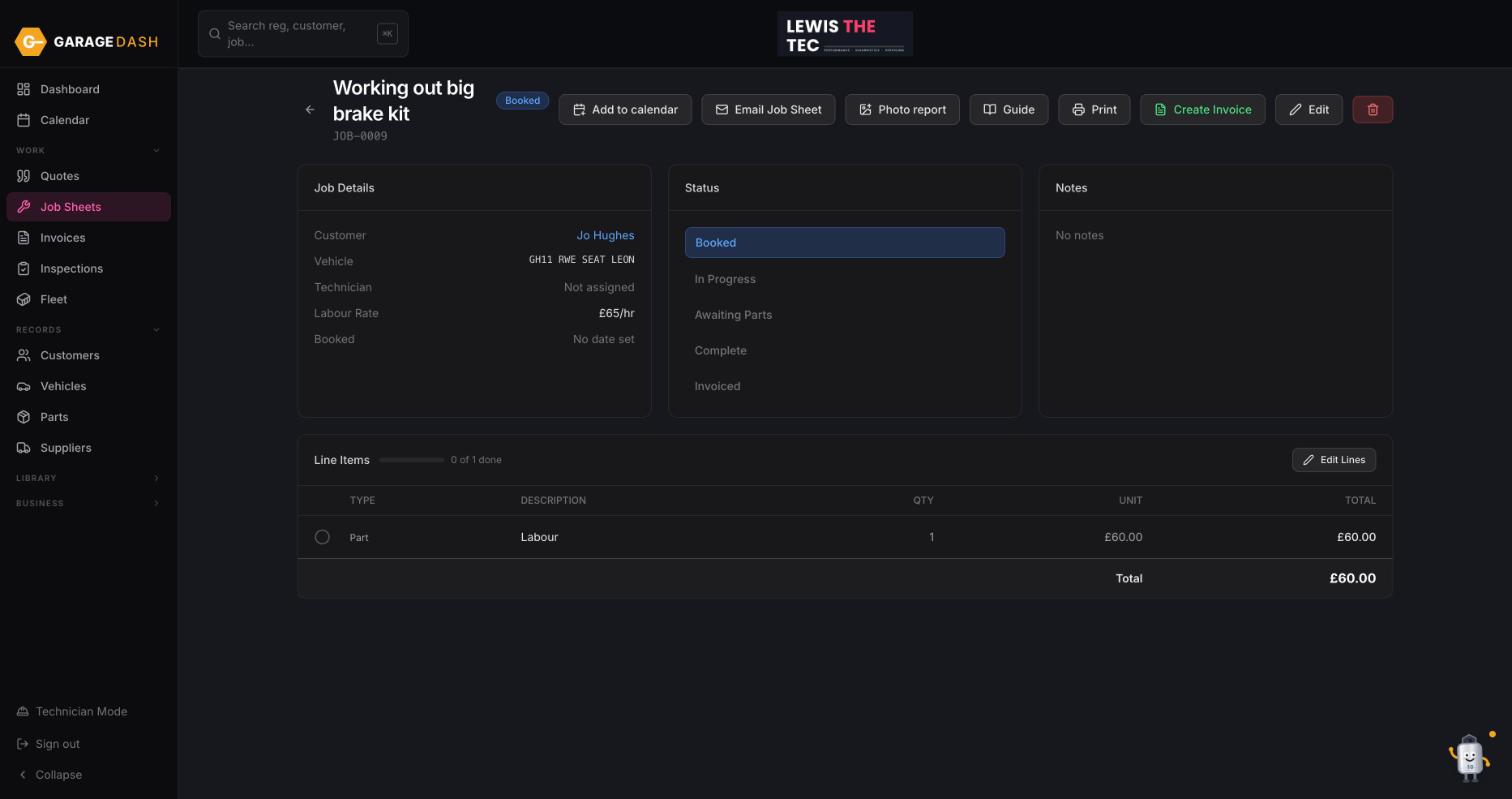
Open the job sheet from the booking
Click the booking and choose Open Job Sheet. The job sheet is where the work gets ticked off, the status moves from Booked to In Progress to Complete, and the invoice gets created at the end.
All the steps on one page
- Open the Calendar and click New Booking. Click Calendar in the left menu. Use Day, Week or Month to find the day, then click New Booking top right. Clicking an empty slot in the grid does the same with the time filled in.
- Give it a title, a start and end, a customer and a car. Type a Title such as MOT and service. Set Start and End. Pick the Customer and their Vehicle. If the customer is new, click New next to the Customer box and add them without leaving the form.
- Assign a technician and save. Choose a Technician so the booking takes their colour on the calendar, add any notes, and click Save. Booking reminder emails, if you have switched them on in Settings, go out automatically from here.
- Open the job sheet from the booking. Click the booking and choose Open Job Sheet. The job sheet is where the work gets ticked off, the status moves from Booked to In Progress to Complete, and the invoice gets created at the end.