Set up your garage in ten minutes
Logo, VAT, labour rate and opening hours. Do this once and every quote, invoice and job sheet comes out right.
Or click through it at your own pace
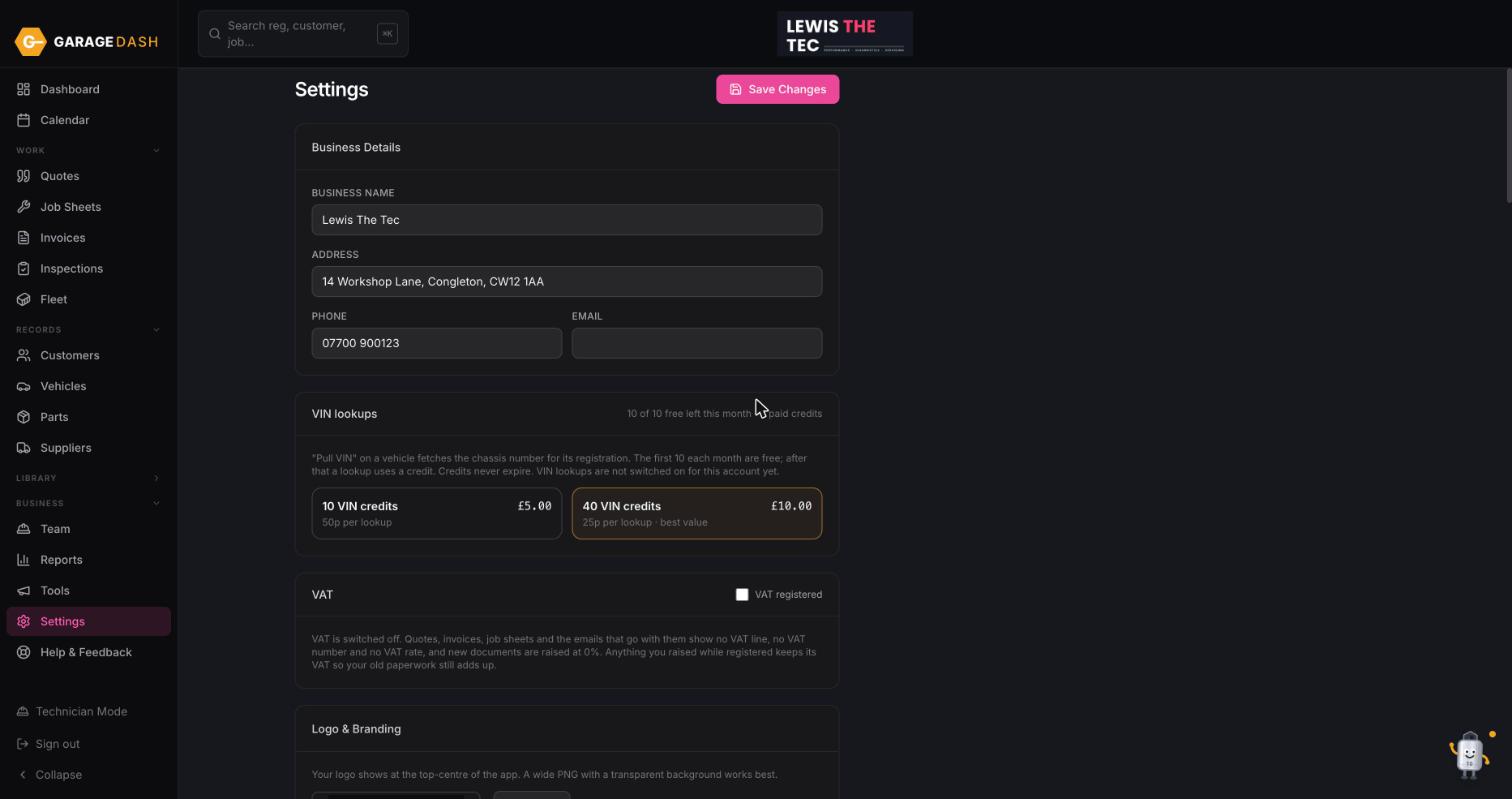
Open Settings
Click Settings at the bottom of the left menu. Fill in Business Details: name, address, phone and email. These print on every quote and invoice, so spell them the way you want customers to see them.
Tick VAT only if you are registered
In the VAT box, tick VAT registered if you are. Leave it off if not: quotes and invoices then show no VAT line at all, and nothing is raised at 20% by mistake.
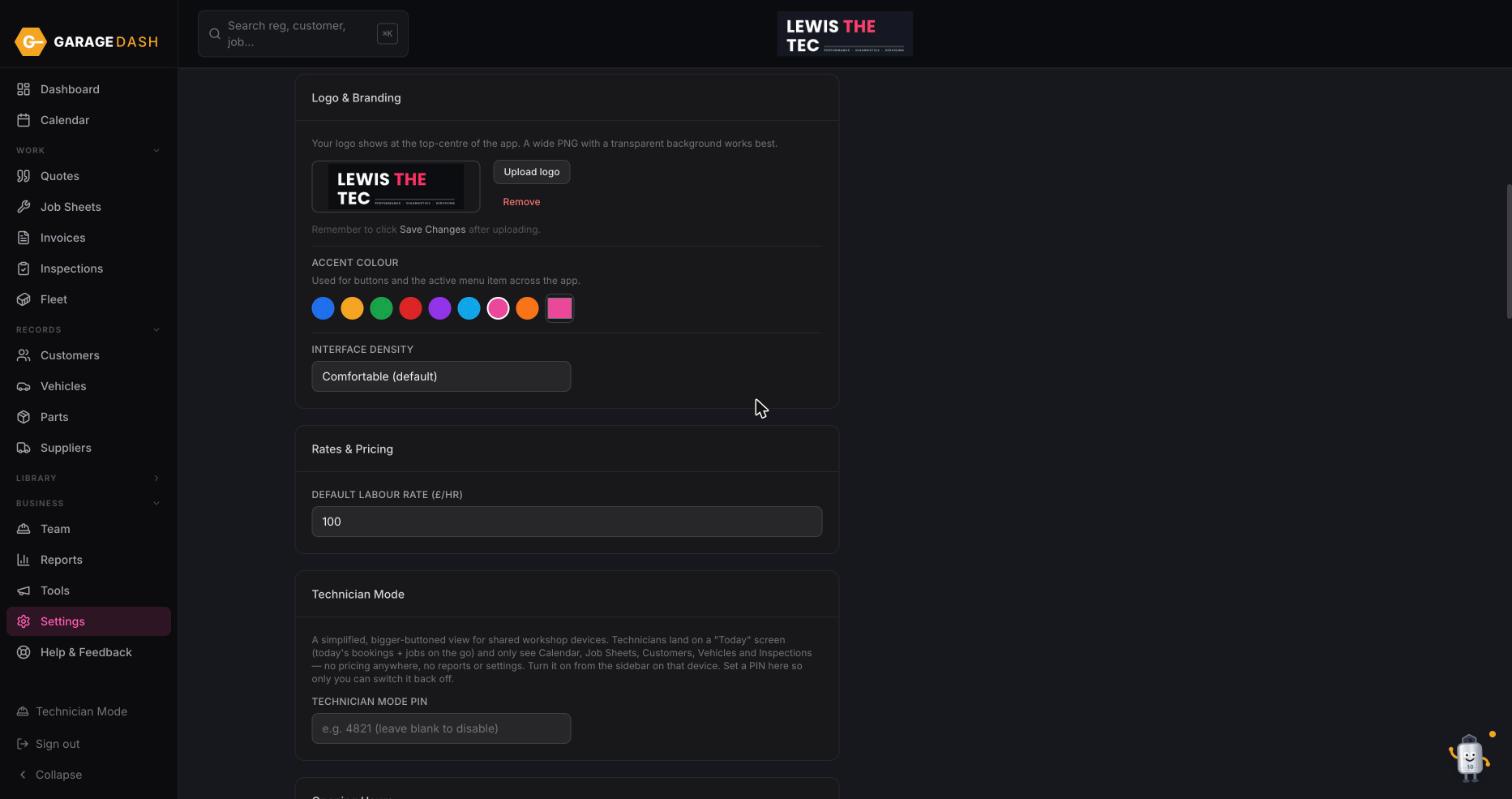
Upload your logo and pick an accent colour
Under Logo & Branding click Upload logo. A wide PNG with a transparent background looks best. Then pick an Accent colour: it changes the buttons and the highlighted menu item across the whole app.
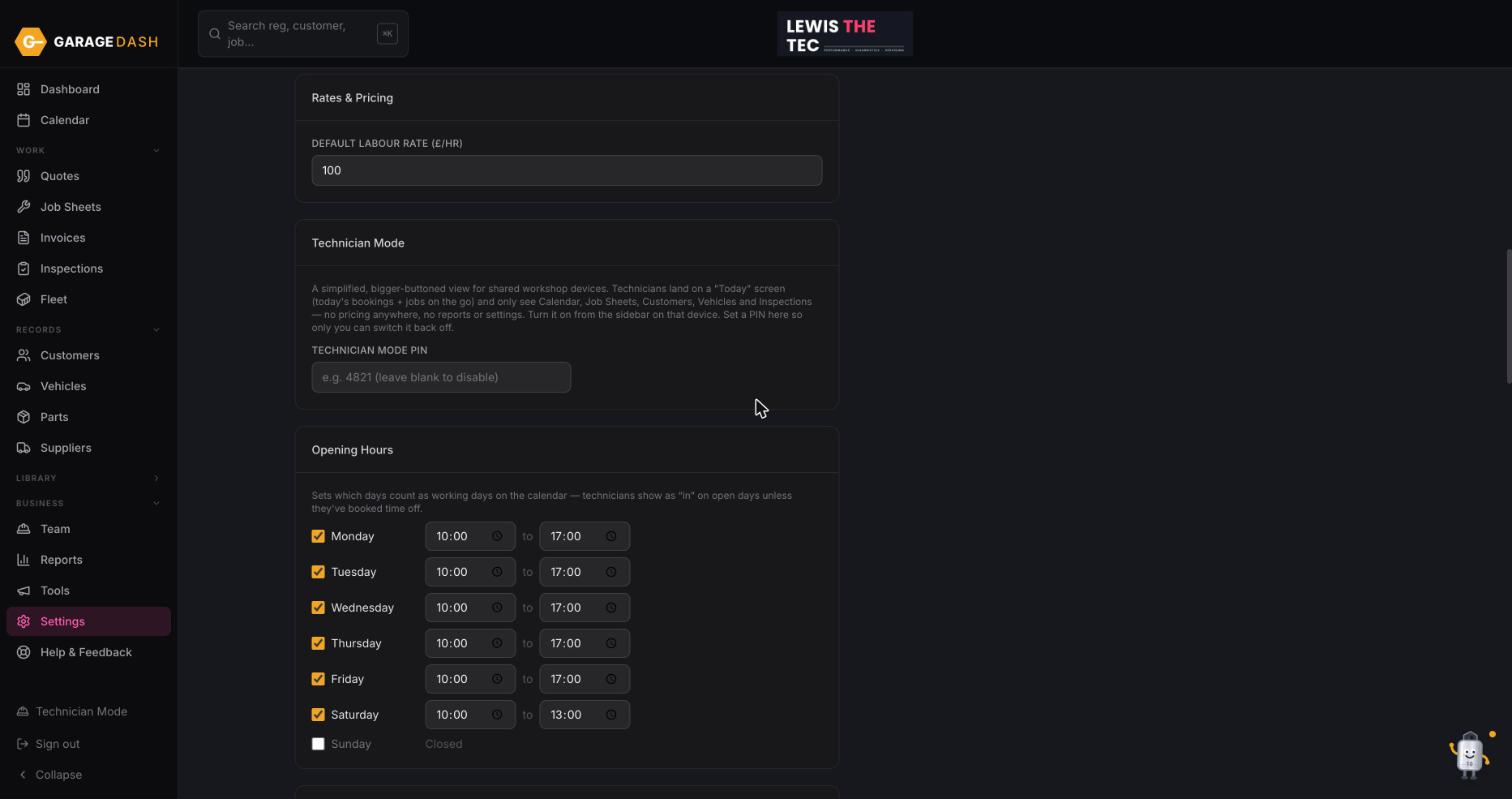
Set your default labour rate
Under Rates & Pricing type your hourly rate in Default labour rate (£/hr). Preset jobs and quote labour lines price themselves from this number, so get it right once and stop typing it.
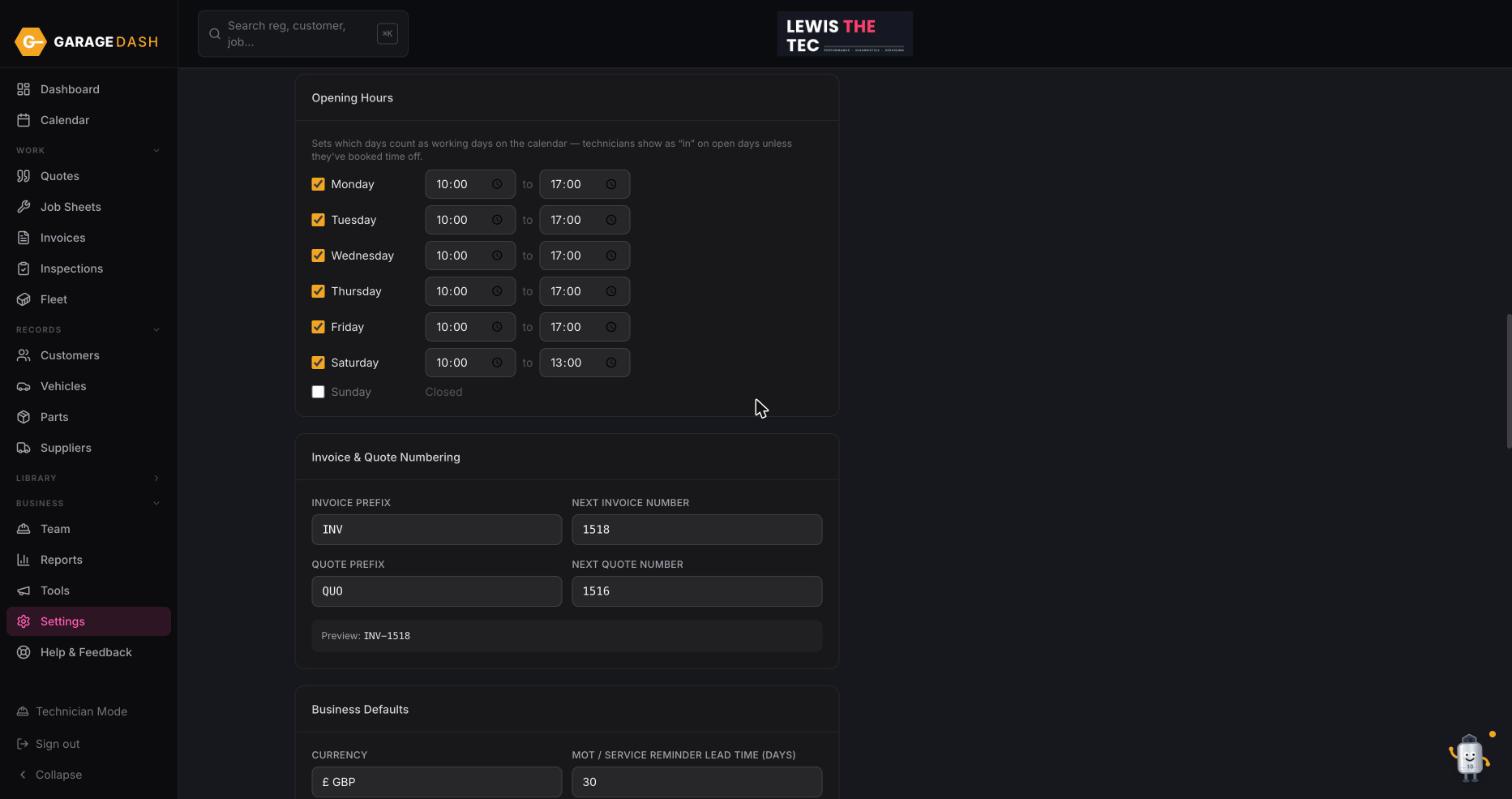
Set your opening hours
Under Opening Hours tick the days you open and set the times. The calendar greys out closed days and your technicians show as in on open days unless they have booked time off.
Click Save Changes
Scroll back to the top and click Save Changes. Nothing on this page is saved until you do. You can come back and change any of it later.
All the steps on one page
- Open Settings. Click Settings at the bottom of the left menu. Fill in Business Details: name, address, phone and email. These print on every quote and invoice, so spell them the way you want customers to see them.
- Tick VAT only if you are registered. In the VAT box, tick VAT registered if you are. Leave it off if not: quotes and invoices then show no VAT line at all, and nothing is raised at 20% by mistake.
- Upload your logo and pick an accent colour. Under Logo & Branding click Upload logo. A wide PNG with a transparent background looks best. Then pick an Accent colour: it changes the buttons and the highlighted menu item across the whole app.
- Set your default labour rate. Under Rates & Pricing type your hourly rate in Default labour rate (£/hr). Preset jobs and quote labour lines price themselves from this number, so get it right once and stop typing it.
- Set your opening hours. Under Opening Hours tick the days you open and set the times. The calendar greys out closed days and your technicians show as in on open days unless they have booked time off.
- Click Save Changes. Scroll back to the top and click Save Changes. Nothing on this page is saved until you do. You can come back and change any of it later.