Connect your Google Calendar
See GarageDash bookings in Google Calendar on your phone, and turn Google Calendar events into GarageDash bookings. It syncs both ways every 5 minutes. Set it up once, in about 5 minutes.
Or click through it at your own pace
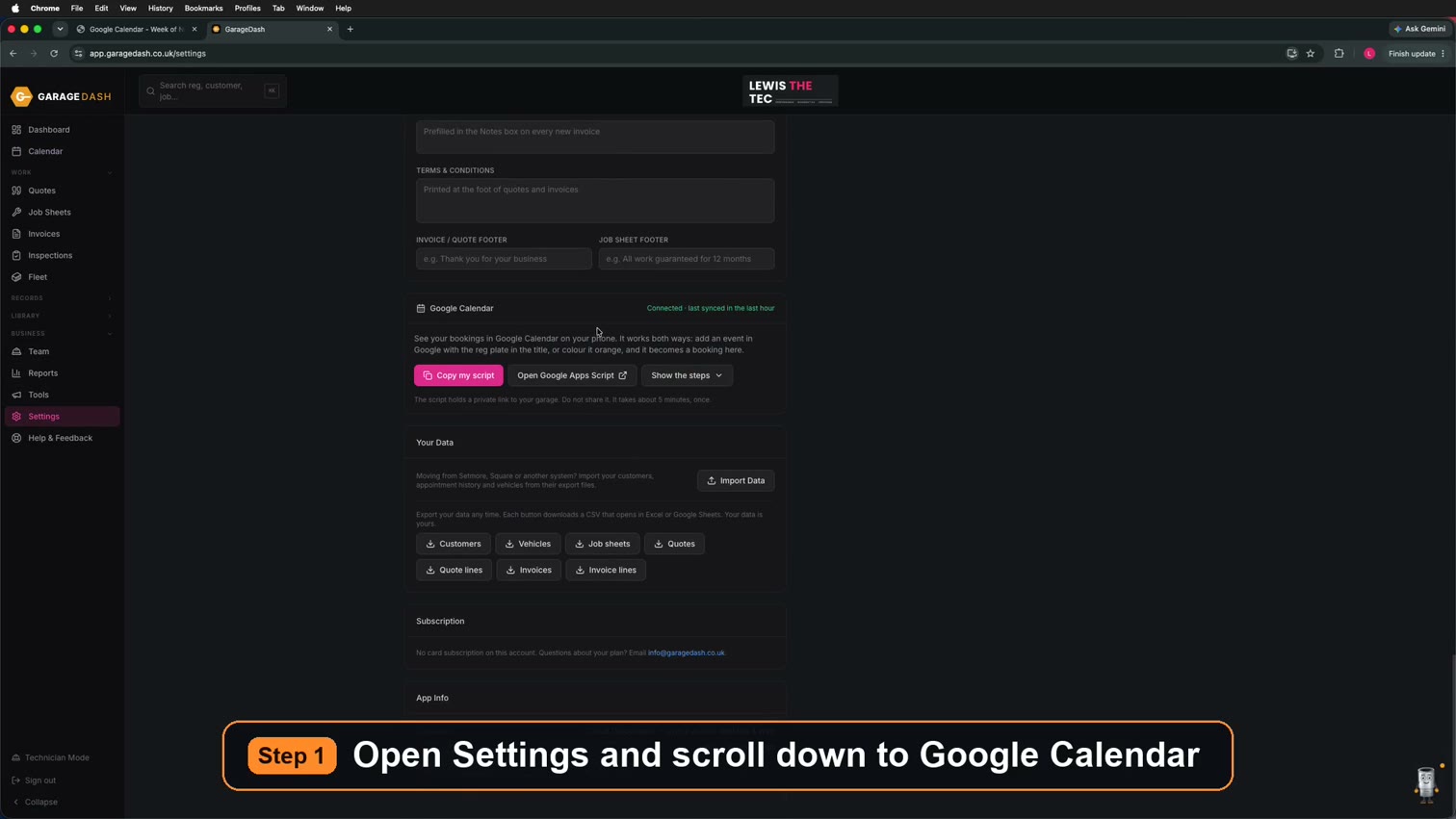
Open Settings and find Google Calendar
Click Settings in the left menu and scroll down to the Google Calendar card.
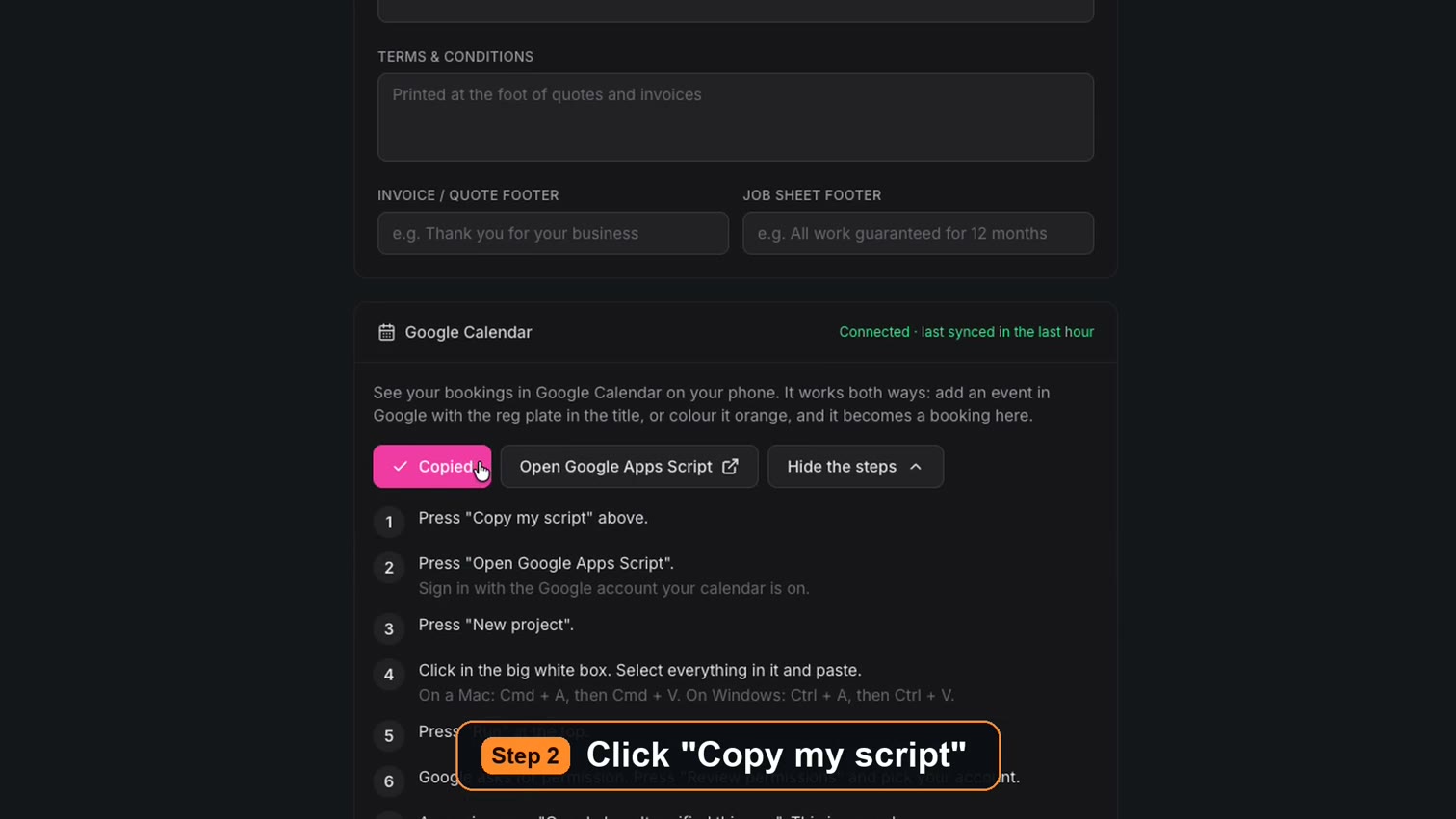
Click Copy my script
Click Copy my script. It copies a small script with a private link to your garage already in it. Do not share it with anyone.
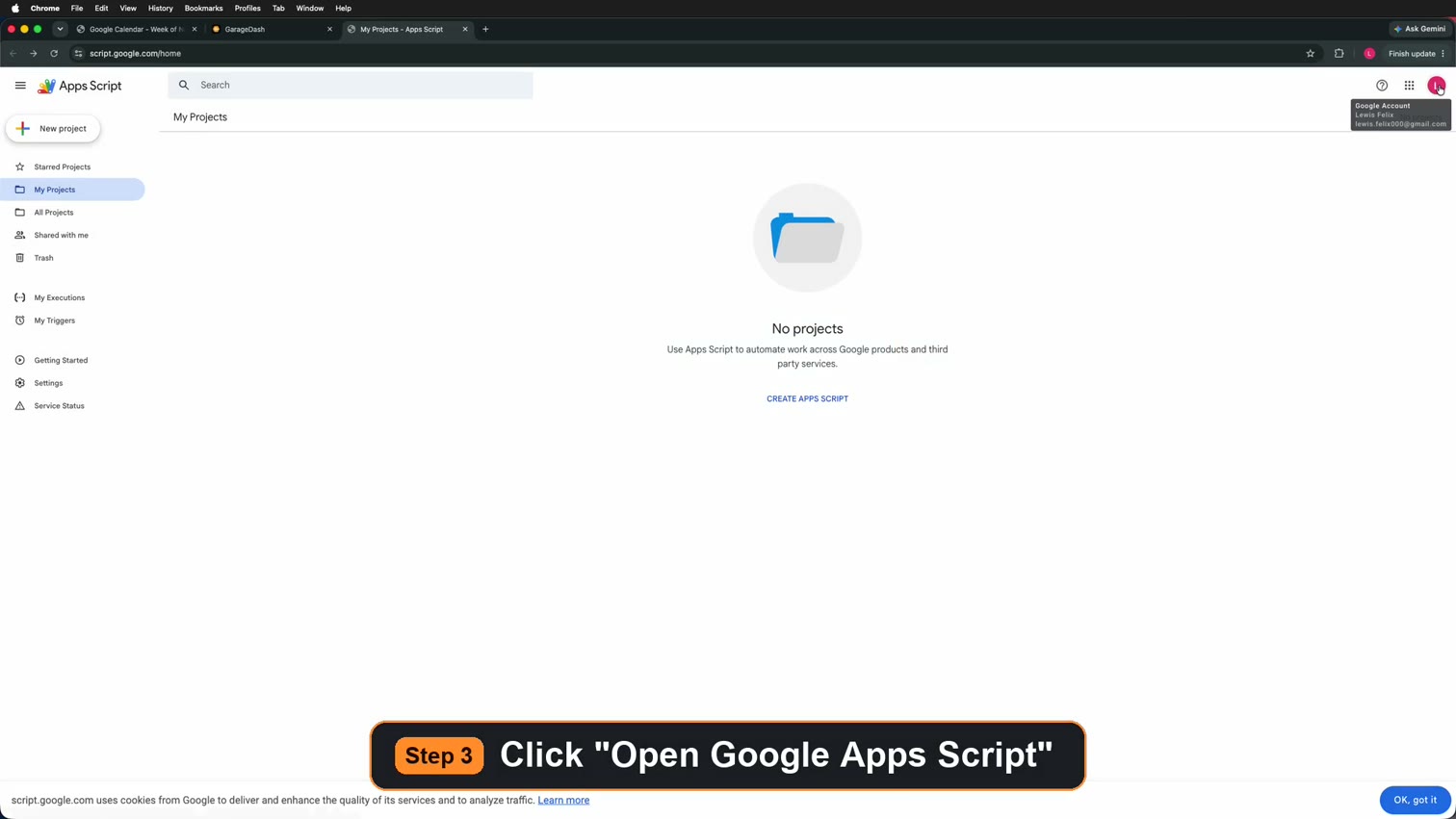
Click Open Google Apps Script
Click Open Google Apps Script. A Google page opens. Check the account in the top right is the Google account your calendar is on.
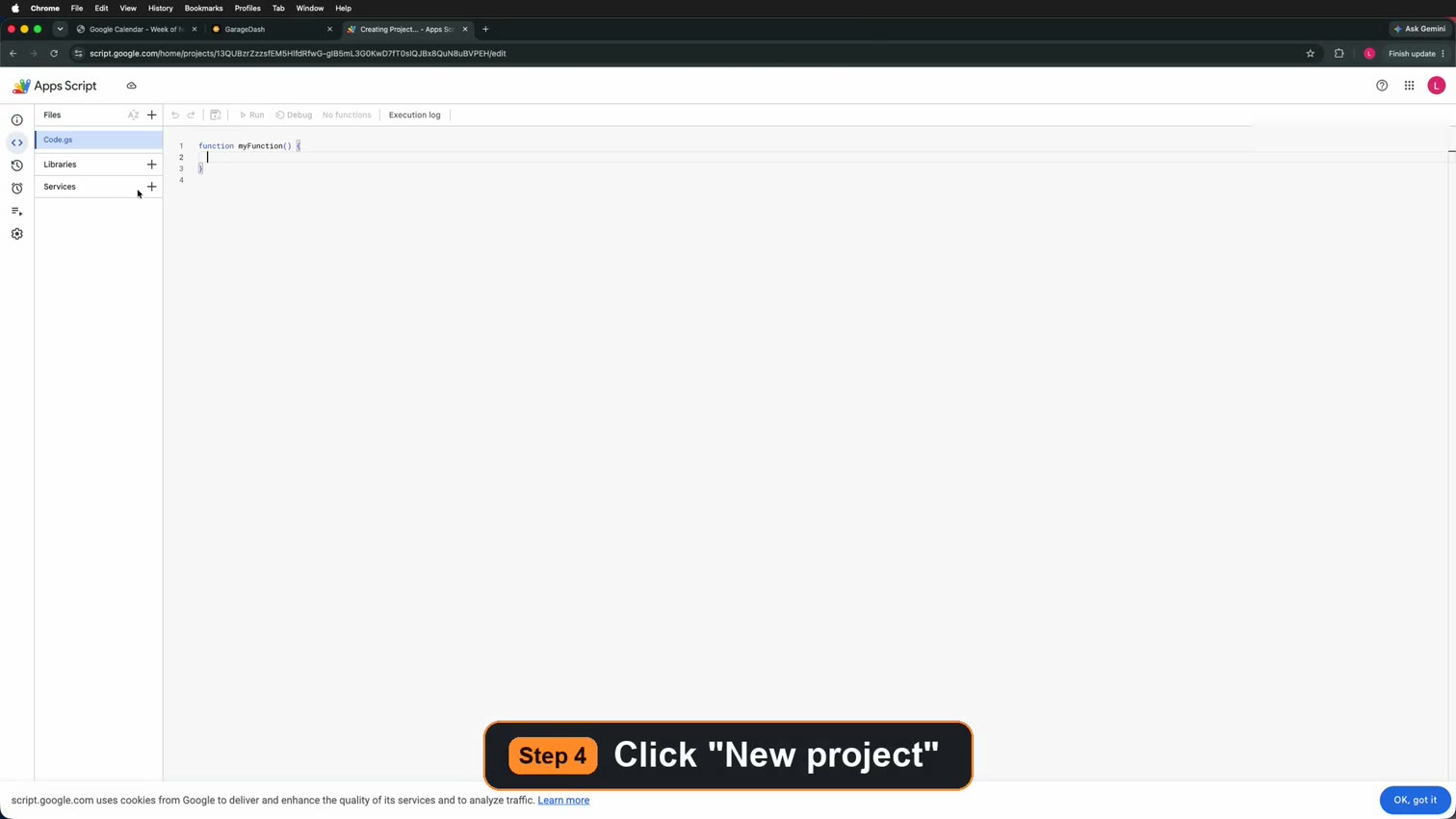
Click New project
Click New project in the top left. A page opens with a white box that has a few lines of code in it.
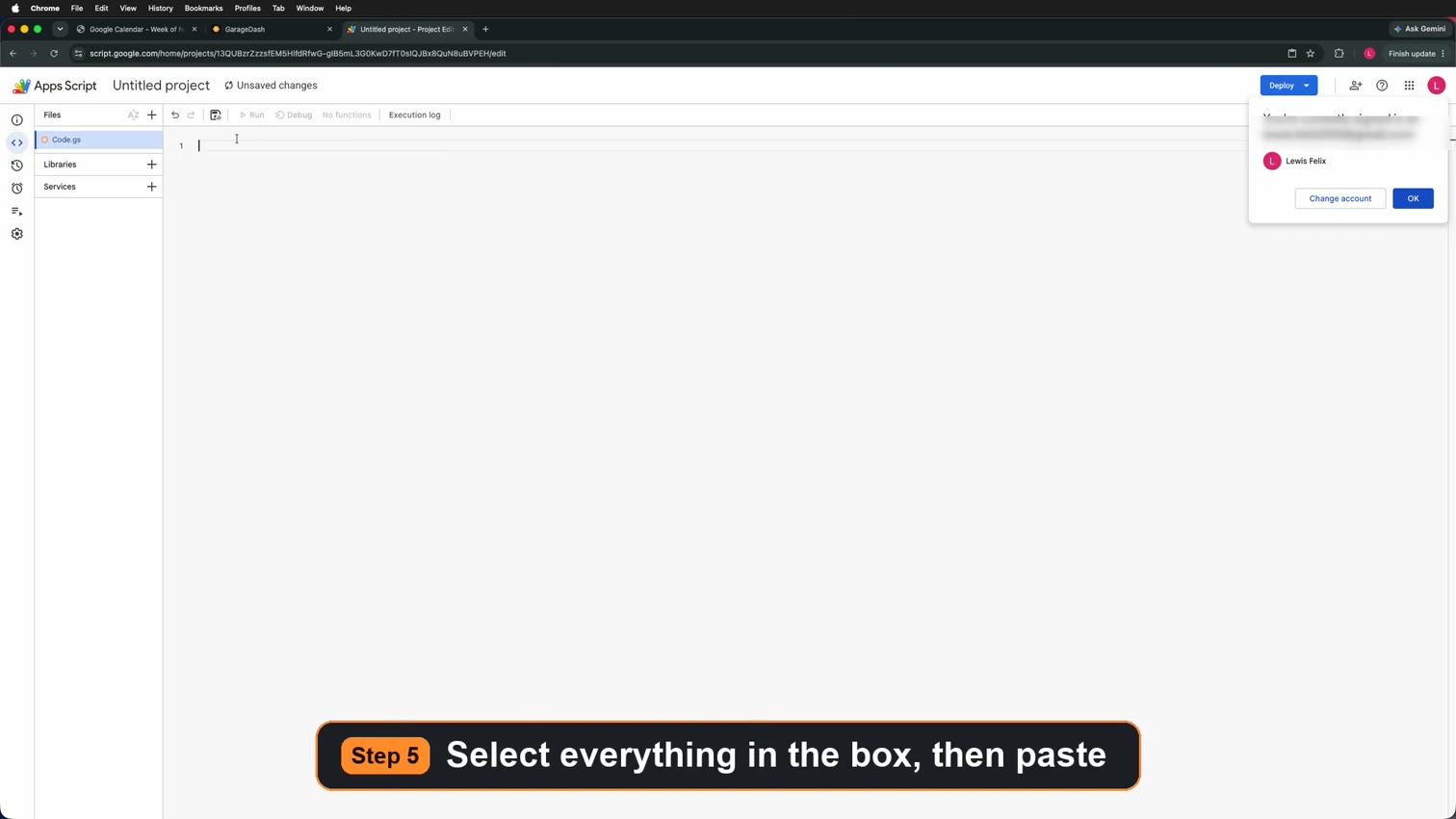
Select everything in the box and paste
Click in the white box. Select everything in it and paste. On a Mac press Cmd + A then Cmd + V. On Windows press Ctrl + A then Ctrl + V.
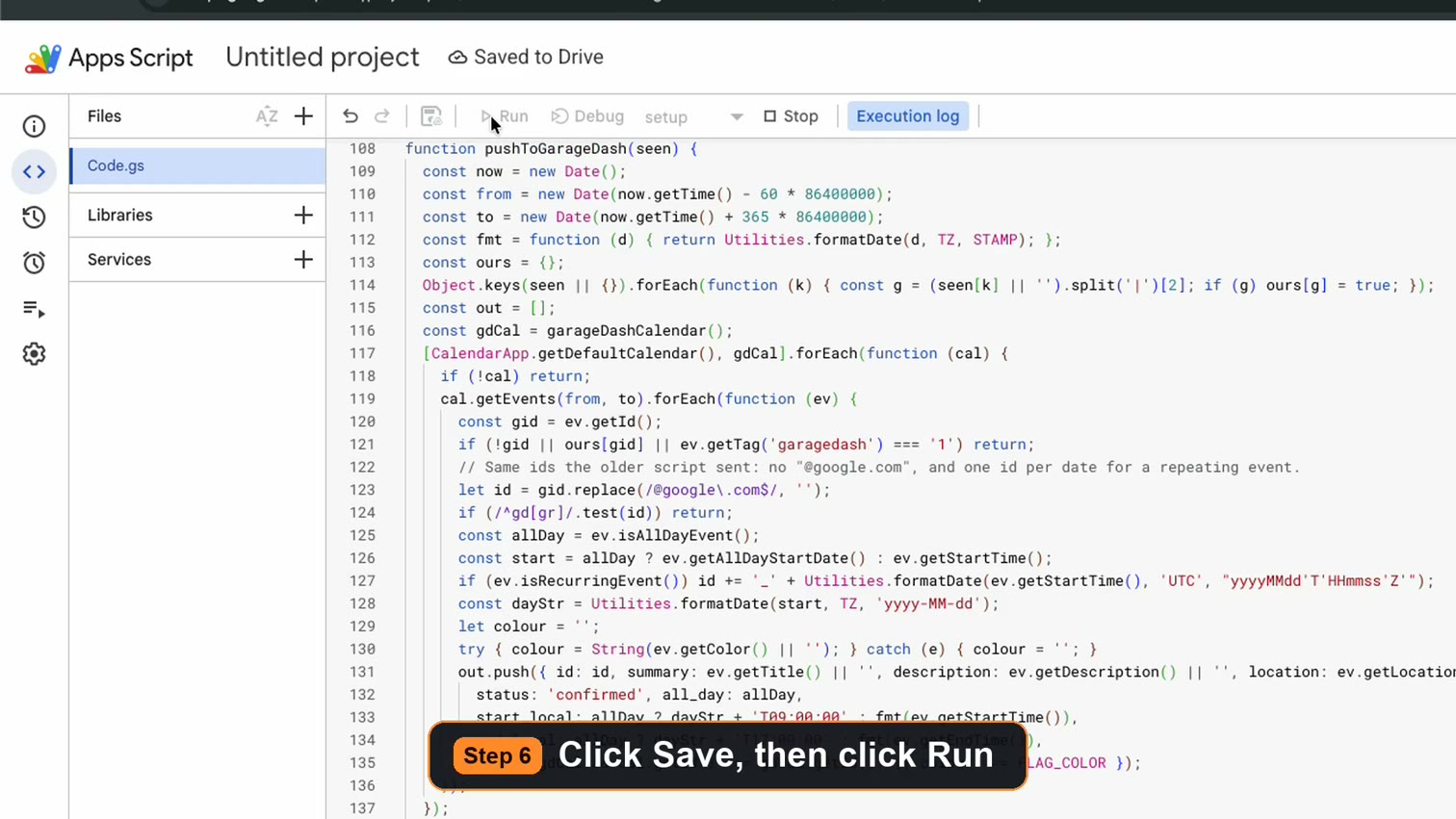
Click Save, then Run
Click the Save icon (the disk), then click Run. If Run is greyed out, save first.
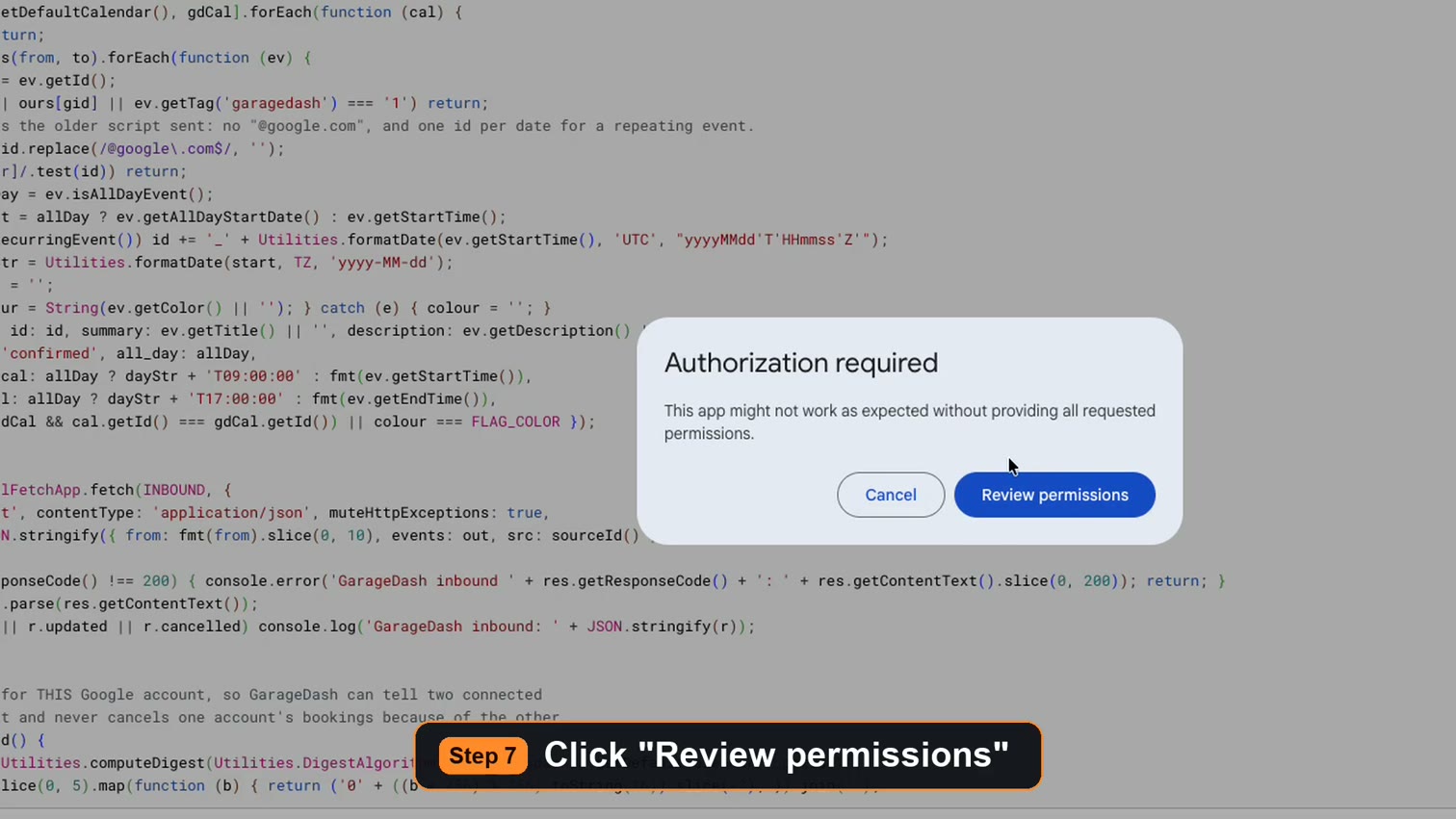
Click Review permissions
Google asks for permission to use your calendar. Click Review permissions and pick your Google account.
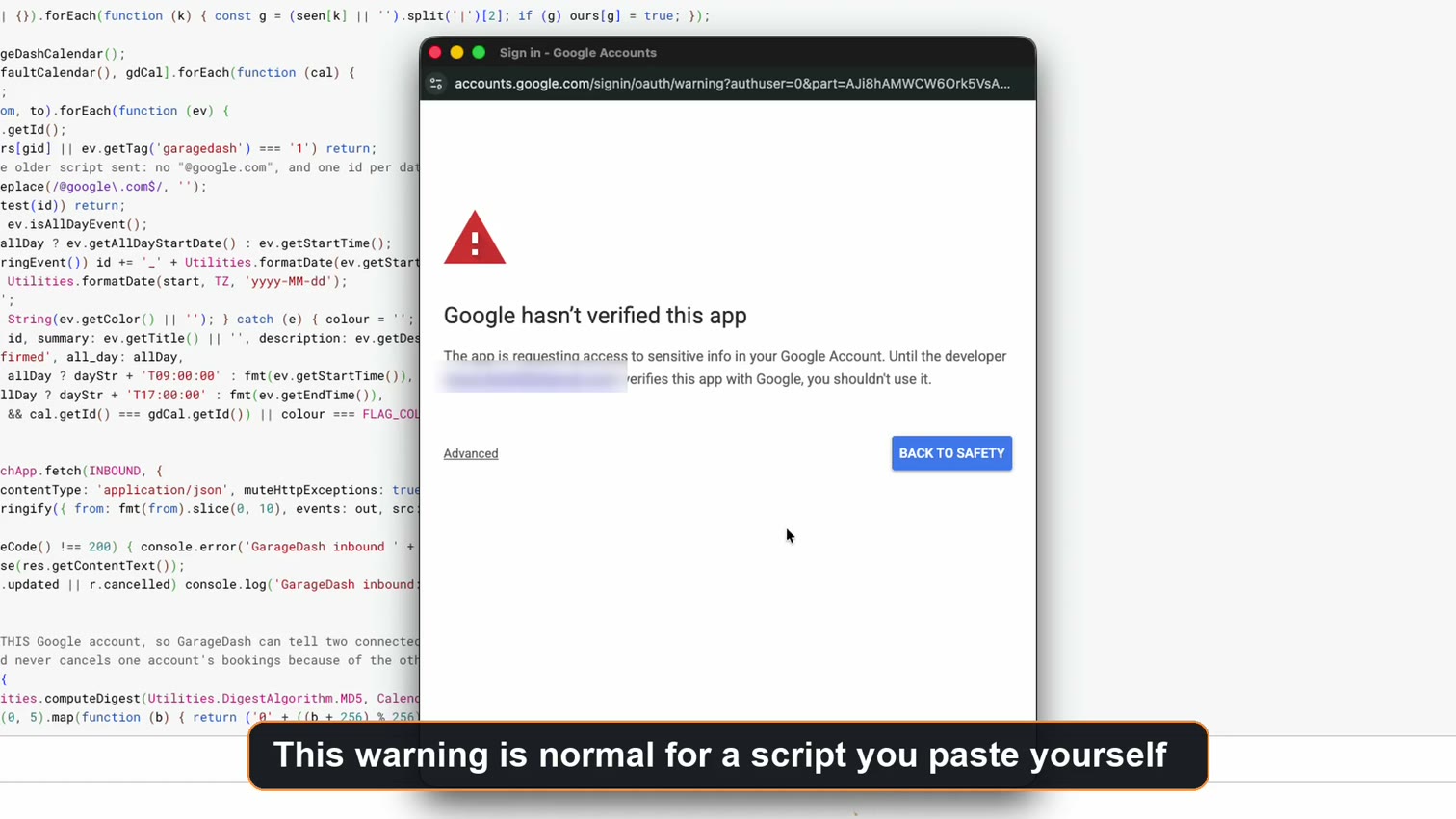
You will see a warning. This is normal
Google says it has not verified this app. It shows this for any script you paste in yourself. The script only runs in your own Google account.
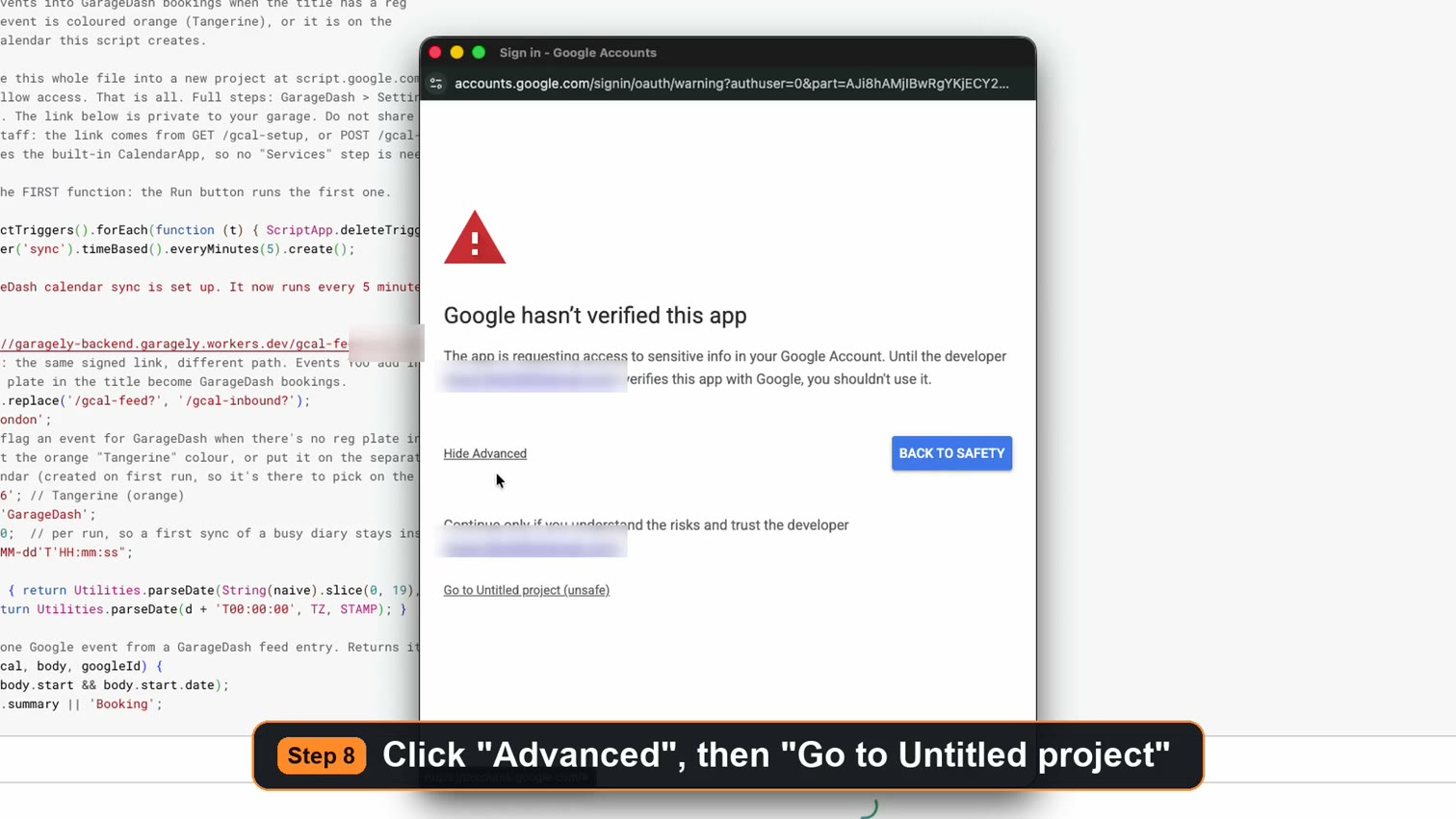
Click Advanced, then Go to Untitled project
Click Advanced at the bottom left, then Go to Untitled project.
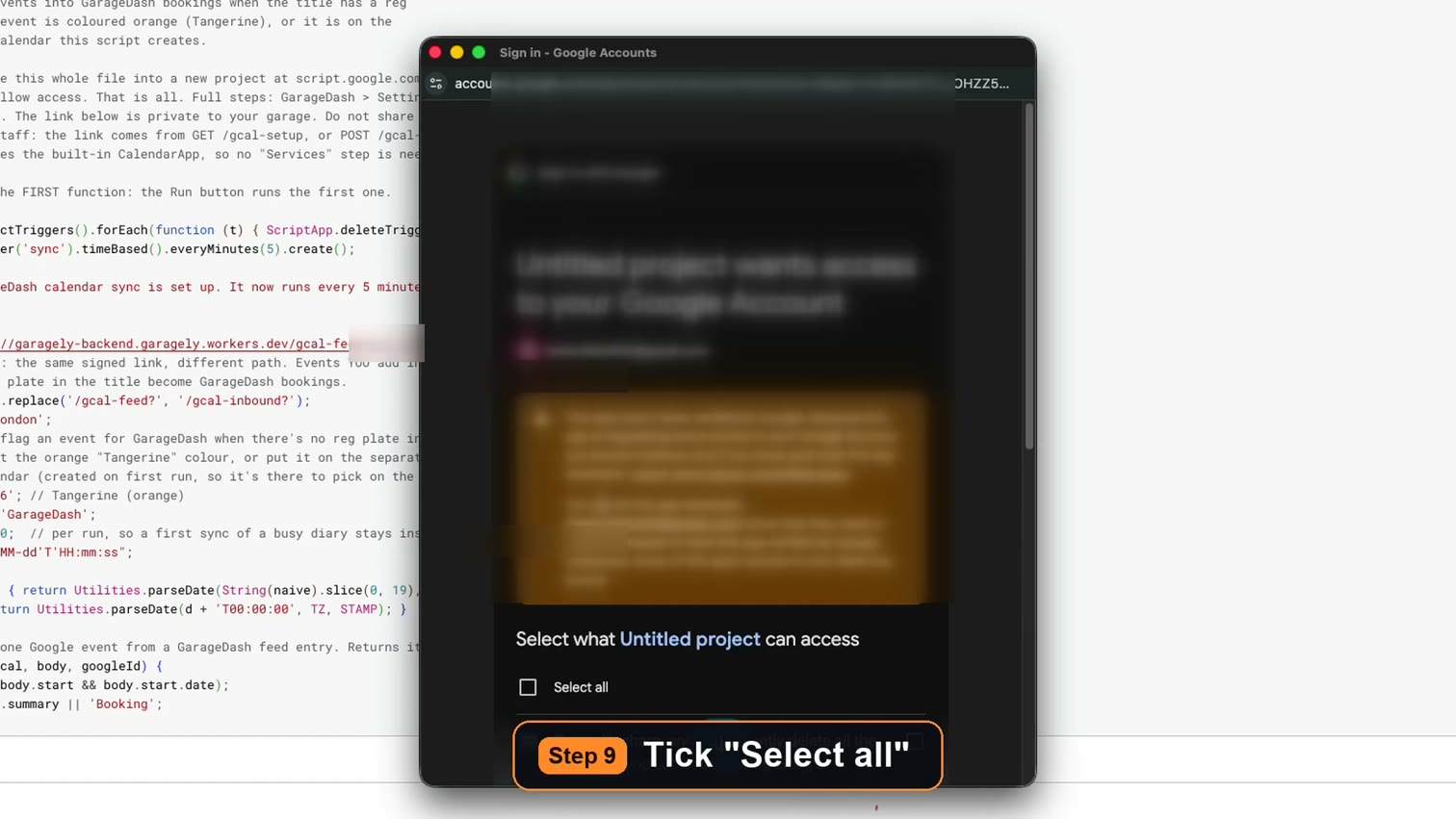
Tick Select all
Tick Select all so the script can read and add calendar events.
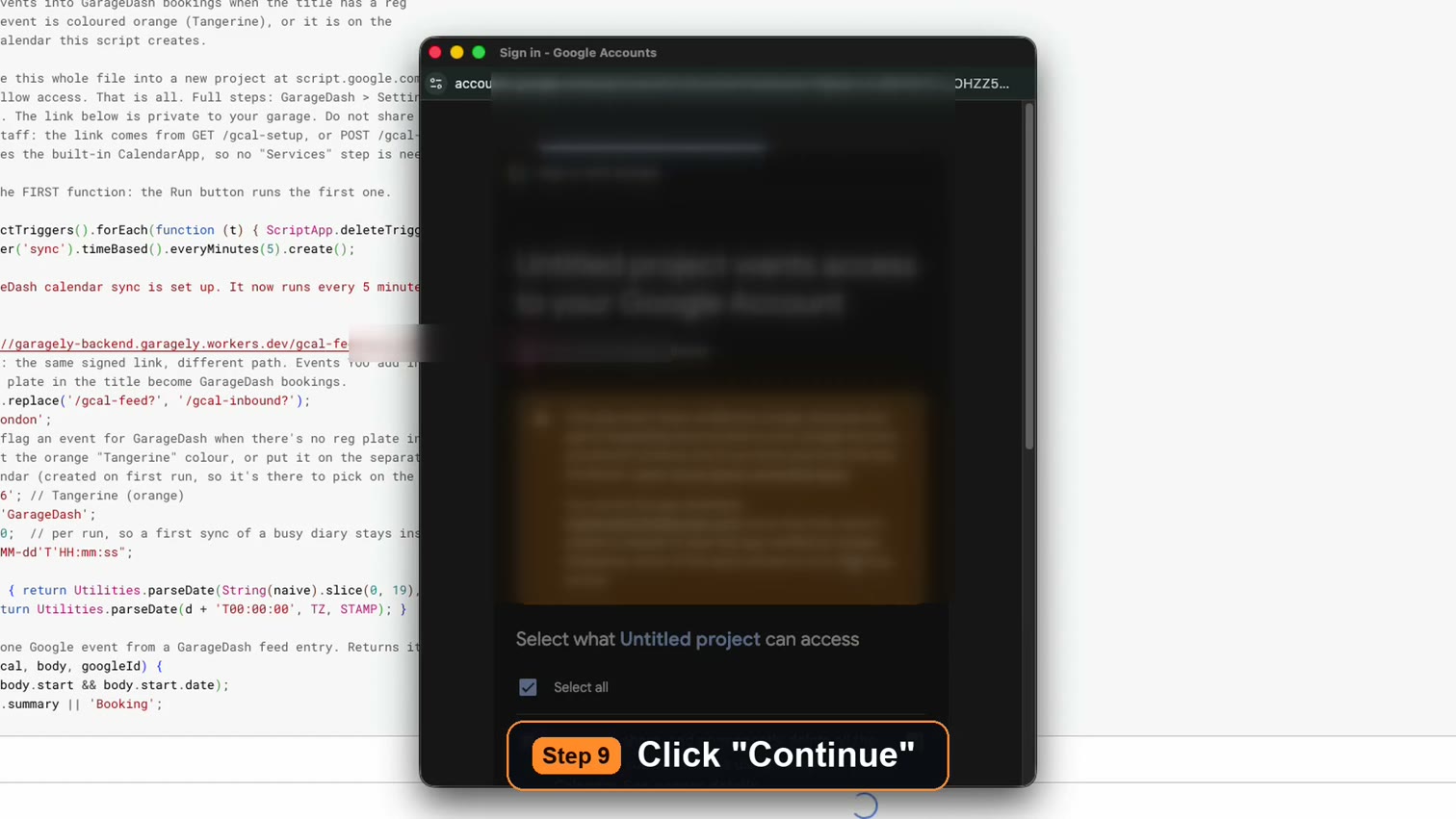
Click Continue
Scroll down and click Continue.
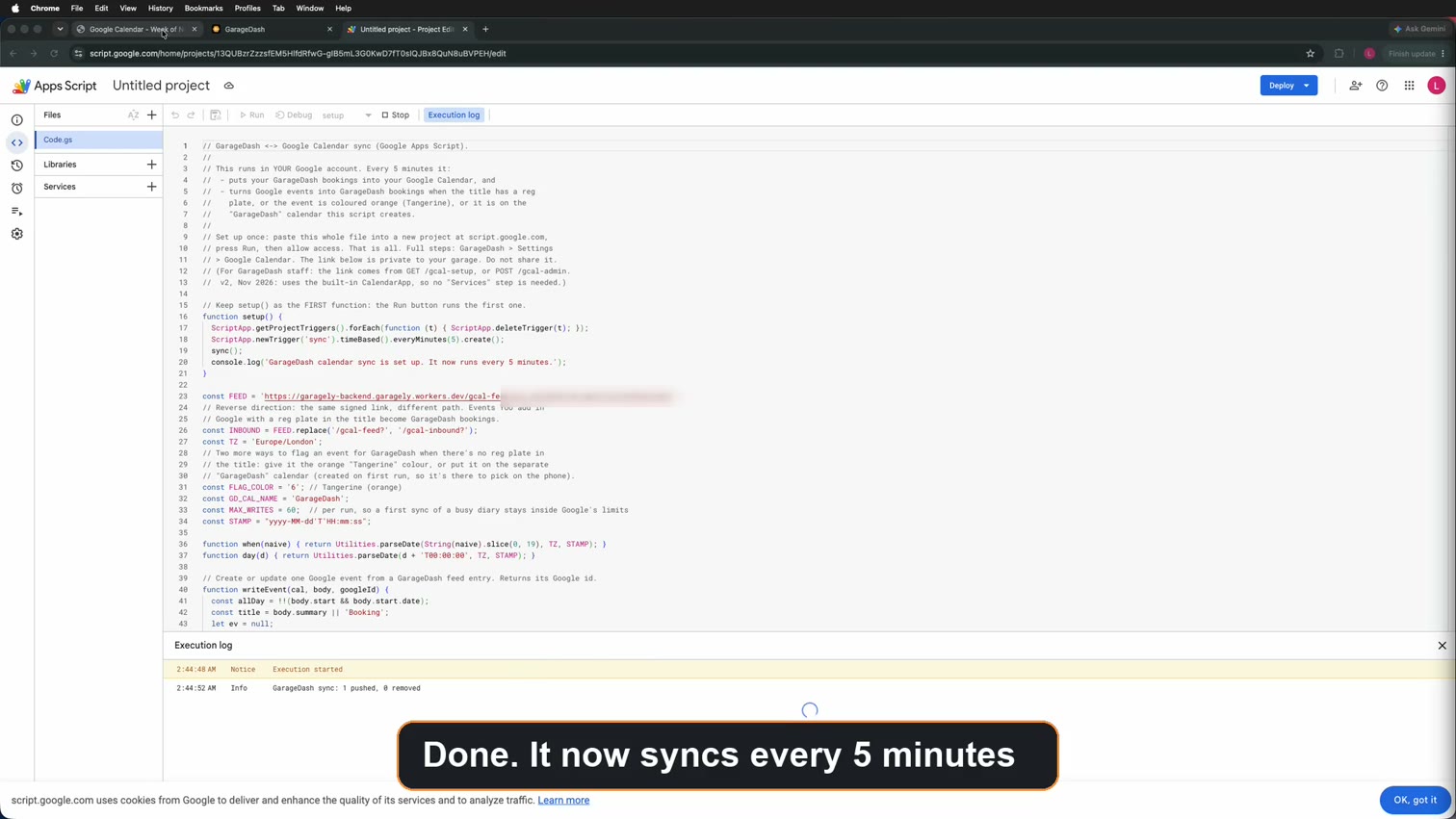
Done. It now syncs every 5 minutes
That is it. Go back to GarageDash Settings and the Google Calendar card will say Connected. The first sync can take a few minutes.
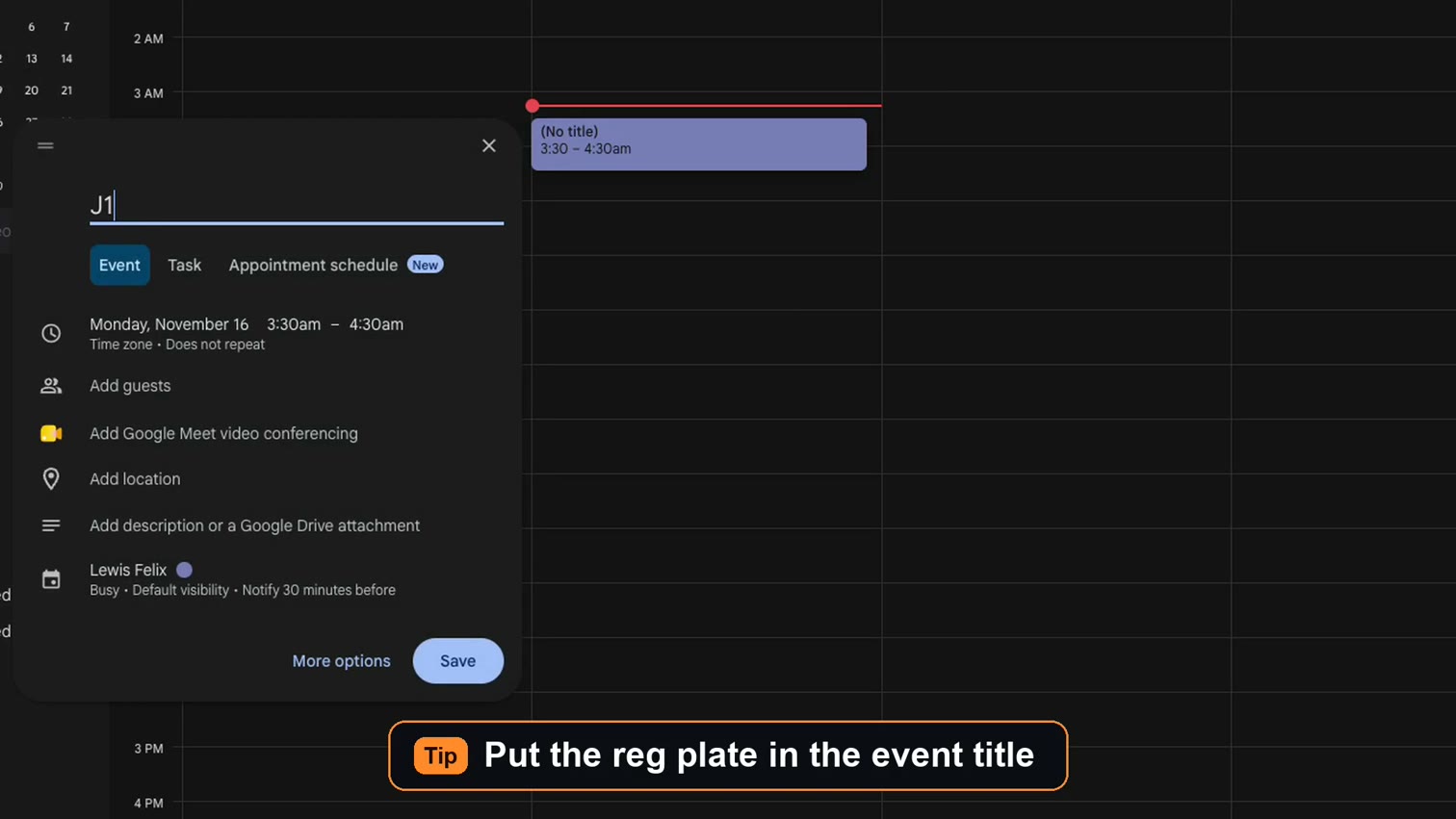
Tip: put the reg plate in the event title
To make a booking from Google Calendar, put the registration in the event title, like J140CHE fit turbo. No reg, no booking, so your dentist appointment stays out of GarageDash. You can also colour an event orange to send it across.
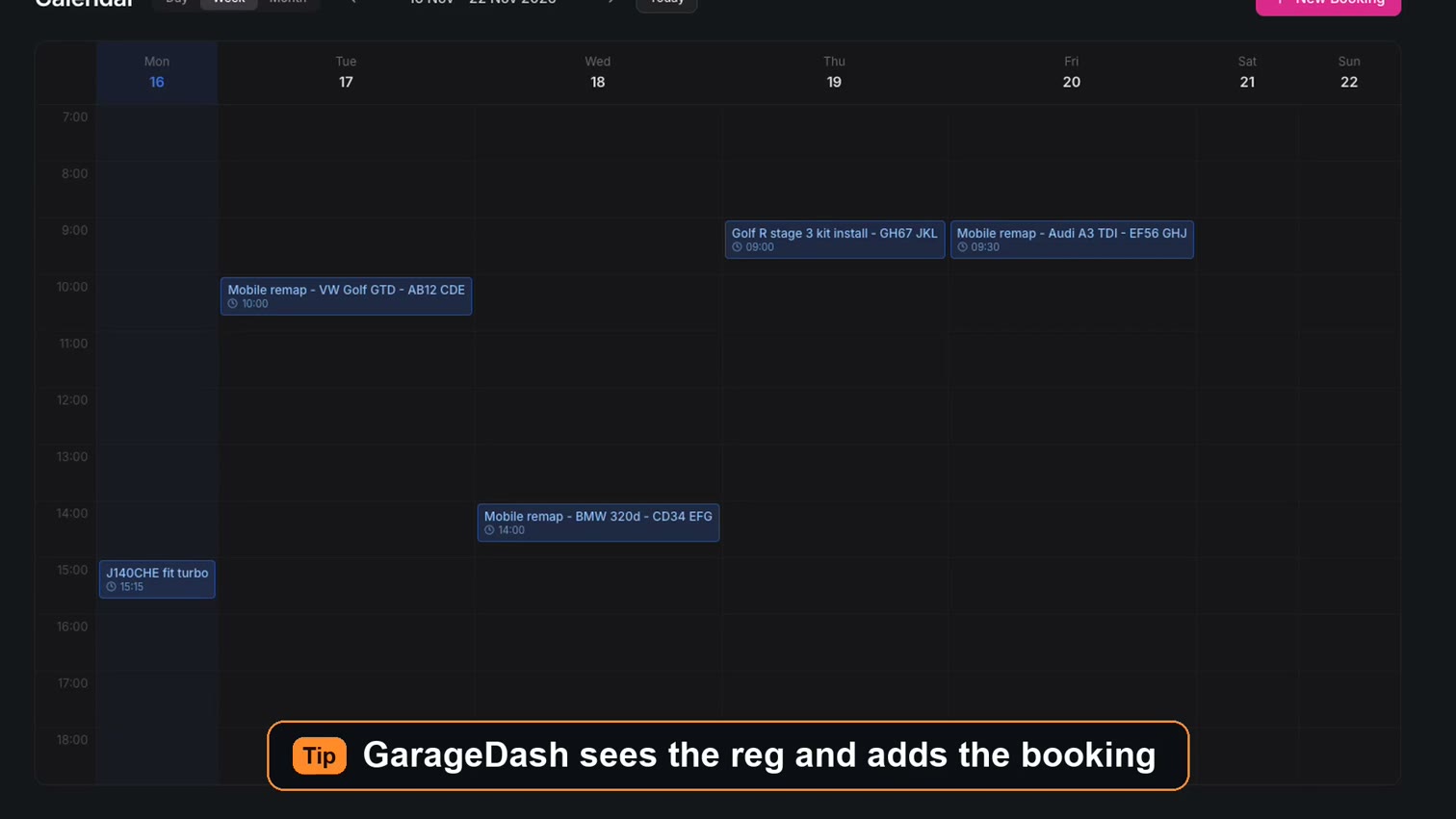
Your bookings show in both
The event appears in the GarageDash Calendar, and every booking you make in GarageDash appears in Google Calendar. You can connect more than one Google account.
All the steps on one page
- Open Settings and find Google Calendar. Click Settings in the left menu and scroll down to the Google Calendar card.
- Click Copy my script. Click Copy my script. It copies a small script with a private link to your garage already in it. Do not share it with anyone.
- Click Open Google Apps Script. Click Open Google Apps Script. A Google page opens. Check the account in the top right is the Google account your calendar is on.
- Click New project. Click New project in the top left. A page opens with a white box that has a few lines of code in it.
- Select everything in the box and paste. Click in the white box. Select everything in it and paste. On a Mac press Cmd + A then Cmd + V. On Windows press Ctrl + A then Ctrl + V.
- Click Save, then Run. Click the Save icon (the disk), then click Run. If Run is greyed out, save first.
- Click Review permissions. Google asks for permission to use your calendar. Click Review permissions and pick your Google account.
- You will see a warning. This is normal. Google says it has not verified this app. It shows this for any script you paste in yourself. The script only runs in your own Google account.
- Click Advanced, then Go to Untitled project. Click Advanced at the bottom left, then Go to Untitled project.
- Tick Select all. Tick Select all so the script can read and add calendar events.
- Click Continue. Scroll down and click Continue.
- Done. It now syncs every 5 minutes. That is it. Go back to GarageDash Settings and the Google Calendar card will say Connected. The first sync can take a few minutes.
- Tip: put the reg plate in the event title. To make a booking from Google Calendar, put the registration in the event title, like J140CHE fit turbo. No reg, no booking, so your dentist appointment stays out of GarageDash. You can also colour an event orange to send it across.
- Your bookings show in both. The event appears in the GarageDash Calendar, and every booking you make in GarageDash appears in Google Calendar. You can connect more than one Google account.